How to complete your Onboarding
Required Information
- Add Taxually as a User
- NOTE: Must be done by a user with permissions to manage other users on your Business Account
Step 1: Add Taxually as a User
Log into tax.ny.gov using your business account
Optional: Click the Tax Services tile
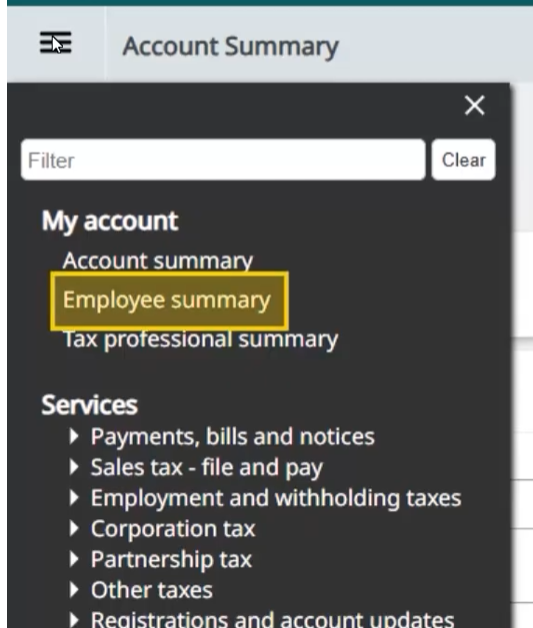
Click the hamburger menu on top left
Select Employee Summary from My Account section (Only available to the account's business master administrators)
Click Add Employee > Click Select next to Manager role
Enter the following details:
First Name: Michael
Last Name: Glover
Email: compliance-usa@taxually.com
Phone: 917-273-6326
Username*: [Your Business Name]Taxually
Example if your business name is "Google" then use:"GoogleTaxually"
Password*: [Create a 14 character password]
*Note: Copy and paste the username and password you created into the Taxually New York onboarding requested information.Click Save & Continue
User Permissions Page:
Authorize this user to perform all current & future services on this account? Select No.
Under Online Services, select:
Payments, bills and notices
Sales Tax - File and Pay
Respond to department notice
Optional: Registrations and account updates
Note: To see the itemized list of activities per category, select the arrow to the left of the category.
Click Save & Continue
Administrative Rights Page:
Manage users: Select not manage users
Manage tax professionals: Select not manage tax professionals' access to tax info
Select Save & Continue
You will see a green check mark/message saying you have successfully assigned administrative rights to GLOVER, Michael.
Once complete, you must enter the username(s) and temporary password(s) created on the Taxually New York Onboarding page
What happens next
Taxually will confirm access with the newly created username and password or contact you if they require additional information.
Need help?
We are here to support you! Please contact us
Additional Resources
Was this article helpful?
That’s Great!
Thank you for your feedback
Sorry! We couldn't be helpful
Thank you for your feedback
Feedback sent
We appreciate your effort and will try to fix the article